IDE Customization
BetterPy tweaks a handful of PyCharm UI surfaces — the navigation bar, Structure View, Go-to popups, and the run console — without touching your source code.
Navigation
Python navigation bar
BetterPy enriches the Python navigation bar with module-path context, making it easier to understand where the current file sits inside a package.
How to use
Open a Python file and show the IDE navigation bar. The enhanced model contributes Python-aware path elements for packages, modules, classes, and functions.
Example
For a file such as:
with a caret inside:
the navigation bar can expose the project/package path and the Python structure around the caret, so jumping to nearby modules or enclosing declarations takes fewer clicks.
What it supports
- Python package and module path display.
- Navigation bar entries for Python source structure.
- Standard navigation-bar selection and keyboard interaction.
- Projects with nested source roots and package directories.
What it deliberately avoids
- Changing file contents or import paths.
- Replacing PyCharm's project view.
- Inventing entries for unresolved or non-Python files.
Notes
- The feature is passive once enabled; use the IDE navigation bar as usual.
- The feature is gated by the Python navigation bar setting under Settings | BetterPy | IDE Customization | Navigation.
Presentation
Enhanced Go to Implementation presentation
Prepends the owning class name to the method name in the Go to Implementation popup whenever two or more candidates share the same short name, so overrides can be told apart at a glance.
In a typical Python codebase, multiple classes implement a method with the same name — for example, several services implementing process, or a hierarchy of handlers all overriding handle. When you invoke Navigate → Go to Implementation (⌥⌘B / Ctrl+Alt+B) on such a method, PyCharm shows the Choose implementation popup with one row per candidate.
Out of the box, every row renders only the method name plus the file it lives in:
This creates a concrete pain point: Speed-search cannot narrow the list. The popup's type-to-filter search only matches against the method/class name only, not the FQN. Since every row shows the same method name, typing ServiceA or UserHandler filters out all rows instead of focusing on the override you want.
BetterPy contributes a gotoTargetPresentationProvider for Python that rewrites the row presentation when — and only when — there is a disambiguation problem. For each candidate method whose short name collides with another candidate in the same popup, the presentation is changed to ClassName.methodName, while the file/location column is kept intact:
With the class name inline you can now Use speed-search to narrow down — typing ServiceB filters the list down to the matching row, because the class name is part of the row's searchable text.
Candidates whose short name is already unique in the popup are left untouched, so the presentation stays minimal and only adds information when it's actually useful.
How to invoke
Use the standard IDE action Navigate | Go to Implementation on a Python method with multiple implementation candidates. BetterPy adjusts the popup rows automatically when candidate names would otherwise be ambiguous.
Example
class CsvExporter:
    def process(self) -> None:
        ...


class JsonExporter:
    def process(self) -> None:
        ...
Invoking Go to Implementation on a shared process declaration can show rows such as:
Typing JsonExporter in the popup speed-search narrows the list to the JSON implementation.
What it supports
- Python Go to Implementation popups with duplicate method names.
- Keeping the file and location columns unchanged.
- Leaving already unique candidates untouched.
- Standard IDE keyboard and speed-search interaction.
What it deliberately avoids
- Changing source code, names, or navigation targets.
- Adding class names when they are not needed for disambiguation.
- Replacing the IDE's own implementation search.
Notes
- The feature is passive once enabled.
- The feature is gated by the Enhanced Go to Implementation presentation setting under Settings | BetterPy | IDE Customization | Presentation.
Test/Production editor tabs
Keeps Python test files in the left editor split and Python production files in the right editor split while the mode is enabled. When navigating (e.g., Go to Declaration) from one test/production file to another same-kind file, the target file is opened in the opposite split to preserve your editing context.
When a diff editor is selected, the feature temporarily merges the editor groups so the diff can use the full editor area. Duplicate tabs return to their original groups with their pin and editor state restored when you leave the diff; the configured layout resumes.
Tab moves wait for the destination editor to finish opening before closing the source tab. Layout restoration waits for editor opening and caret navigation before restoring focus and reporting completion.
Test-file classification follows the applicable pytest python_files patterns in addition to collected test data and conftest.py, so custom test file names stay in the test split. Python stub files (.pyi) are also classified and participate in same-kind opposite-split navigation like regular Python files.
How to invoke: Use the Test/Production Split icon in the title toolbar.
The same menu includes Save Editor Layout and Restore Editor Layout. Saving replaces the project's previous snapshot and records the left/right open tabs, focused tab, and its caret position. The versioned snapshot is kept in the project's IDE state (testProductionEditorTabs.xml); restoring replaces the current editor layout and skips files that are no longer available. Snapshots from newer unsupported formats are left untouched rather than restored.
Enhance Structure View
Master switch for all BetterPy structure-view additions. When enabled, BetterPy wraps PyCharm's Python structure view model and plugs in the filters and icons described below. Turning it off restores the stock PyCharm structure view exactly, and the individual sub-options become unavailable.
The wrapper is transparent: grouping, sorting, PyCharm's own filters, and the tree's expand/collapse behaviour are preserved.
How to invoke: Settings → Tools → BetterPy → IDE Customizations → Structure View.
Filter private members
Adds a filter that hides private members — names starting with a single underscore (_helper) or a double underscore (__mangled) — so you can focus on a module's or class's public API.
Dunder members such as __init__ and __repr__ are part of the public protocol of a class and stay visible.
How to invoke: Click the filter icon in the Structure tool window → toggle "BetterPy: Show private members". The same toggle is available in the file structure popup (⌘F12 / Ctrl+F12).
Hide overloads
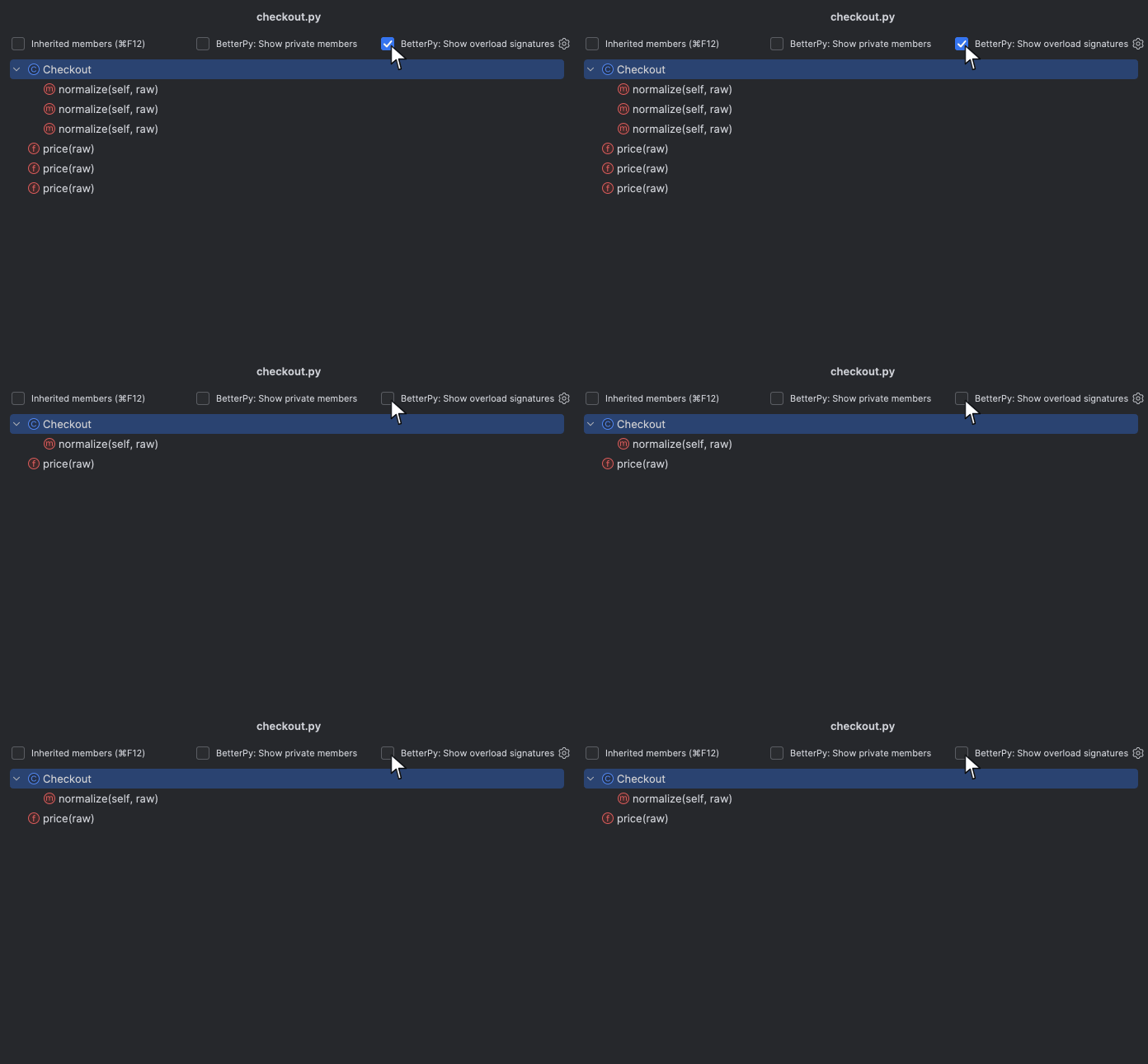
Hides typing.overload signatures from the structure view whenever the implementation is present, so a function that carries several overloads takes a single row instead of one row per signature.
Overload-only declarations — typically in .pyi stubs or protocols, where no implementation follows — stay visible, because hiding them would leave nothing behind. Aliased imports such as from typing import overload as _overload are recognised too.
How to invoke: Click the filter icon in the Structure tool window → toggle "BetterPy: Show overload signatures". Overloads are hidden by default; check the box to bring them back.
from typing import overload

@overload
def parse(value: int) -> int: ...

@overload
def parse(value: str) -> str: ...

def parse(value: int | str) -> int | str:  # only this row is shown
    return value
Icons for pytest tests and fixtures
Renders pytest tests, pytest fixtures, and plain helper functions with distinct icons in the structure view, so you can tell at a glance which functions are collected by pytest and which are just helpers.
In test files and in conftest.py, two extra filters let you independently show or hide test functions and pytest fixtures. Plain helper functions remain visible. Both pytest kinds are shown by default.
How to invoke: Icons appear automatically. The filters live behind the filter icon in the Structure tool window: "BetterPy: Show test functions" and "BetterPy: Show pytest fixtures".
import pytest

@pytest.fixture       # fixture icon
def client(): ...

def test_login(client):  # test icon
    ...

def make_payload():   # plain function icon
    ...
Filtering
Message console filter
BetterPy turns selected Python run-console and test-console output into clickable links, so console text can take you back to the related test, file, or class.
The feature is passive: run tests or Python code normally, then click the highlighted part of a supported console line. If multiple Python classes match the same class name, BetterPy opens a chooser.
Pytest node IDs
Pytest node IDs link to the matching test function, method, class, or parametrized test case.
tests/test_orders.py::test_creates_order
tests/test_orders.py::TestCheckout::test_rejects_empty_cart
tests/test_orders.py::test_creates_order[premium-user]
The full node ID is linked. Parametrized IDs may contain nested brackets, quotes, or class reprs:
Pytest short summaries
Pytest failure and error summaries link the file or node ID before the - separator.
FAILED tests/test_orders.py::TestCheckout::test_rejects_empty_cart - AssertionError: ...
ERROR tests/test_orders.py::test_creates_order - RuntimeError: ...
FAILED tests/test_orders.py - AttributeError: module 'src.orders' has no attribute 'Order'
When a summary includes only a file path, BetterPy links the file. When it includes a full node ID, BetterPy links the test target.
Python class reprs
Python class reprs link the class name inside <class ...> output.
Only the class portion is highlighted, for example HttpAdapter. Nested classes are highlighted from the first class-like segment:
AttributeError object types
AttributeError lines that include an object type link the reported class name.
AttributeError: 'GetCephFileSystemsQuery' object has no attribute 'name'
E   AttributeError: 'CheckoutService' object has no attribute 'submit'
For these lines, BetterPy highlights the object type itself, such as CheckoutService.
Object reprs
Object reprs link the represented object's class.
self = <src.adapters.outbound.http.HttpAdapter object at 0x10bbf0530>
value = <src.domain.orders.OrderCreated object at 0x10b7a7d90>
client = <redis.asyncio.client.Redis(<redis.asyncio.connection.ConnectionPool(...)>)>
BetterPy highlights the class name, such as HttpAdapter or OrderCreated. For constructor-style reprs, each fully qualified class fragment is linked separately.
Exception class lines
Pytest traceback exception lines link class-like dotted names after the E prefix.
Names must look class-like, meaning at least one dotted segment starts with an uppercase letter. Plain variable-like names are ignored to avoid false positives.
Structural Search
Structural Search Profile (Python)
Enables the IntelliJ Structural Search dialog for Python files and adds a Python profile for pattern matching and constraints. Use it to find and replace code patterns across your project.
This is an incubating integration. Making Structural Search genuinely useful for Python will likely require extensive testing on real projects and user feedback on templates, placeholders, constraints, and Python-specific syntax equivalences.
How to invoke: Edit → Find → Search Structurally…
Try it yourself: paste the snippet below into a Python file, then open Search Structurally… and enter the pattern. The $name$ tokens are SSR placeholders — each one matches any single expression or identifier.
This pattern matches the two .append(...) calls but not the .extend(...) call. Open Edit variables… in the Structural Search dialog to add constraints — for example, restrict $obj$ to a specific type, set a count range on a placeholder, or require a regex on its text.
Learn more: see the IntelliJ Platform docs for Structural search and replace and the Search templates, modifiers, and script constraints reference for placeholder and modifier syntax.
Interpreters
Interpreter Cleaner
The Interpreter Cleaner is a non-modal tool window that lists every Python interpreter registered in the IDE, shows its health status and logical and allocated sizes, and lets you remove broken or stale entries in bulk.
How to open: View → Tool Windows → Interpreter Cleaner.
What it shows
Each row in the table shows:
| Column | What it means |
|---|---|
| Status | ✅ OK, ❌ Broken, or ⚠️ Unsupported |
| Name | The interpreter name as it appears in IDE settings |
| Reason | A one-line explanation of the status |
| Version | Detected Python version (e.g. 3.11) |
| Env type | How the environment was created (virtualenv, Poetry, Pipenv, Uv, Hatch, Conda, system, …) |
| Logical size | Sum of file lengths in the environment directory; marked (partial) if some entries could not be read |
| Allocated size | Filesystem-allocated space, when supported and available; not a prediction of reclaimable space |
| Path | Path to the Python interpreter executable |
The Broken only checkbox hides healthy interpreters so you can focus on entries that need attention. The Python version and Env type drop-downs narrow the list further.
Interpreters used by the current project or its modules have a tinted row and a bold name. Their registrations and environment directories are protected from purging.
Right-click a path to open its directory in the file manager or terminal.
Purging broken interpreters
Select one or more rows and click Purge selected to remove them from the IDE's interpreter registry. A confirmation bar appears before any changes are made — click Confirm purge to proceed or Cancel to abort.
Purging only removes the interpreter entry from the IDE's registry. It does not touch files on disk unless you also check Remove venv remnants (see below).
Only broken or unsupported interpreters can be purged. Healthy interpreters, and any interpreter used by the current project or one of its modules, are always skipped, even if they are broken.
The purge runs in the background, so the IDE stays responsive while large environments are removed. The purge buttons are disabled until it finishes.
Removing leftover venv directories
The Remove venv remnants option lets the Interpreter Cleaner delete the virtual environment directory from disk after it removes an interpreter entry from the registry. This is useful when you have broken or deleted-project interpreters that left behind orphaned .venv folders consuming disk space.
Which environments can be deleted
This option only applies to plain virtual environments — environments created directly with python -m venv, virtualenv, or similar tools, where the directory is owned entirely by that single project.
Managed environments are never deleted, even with "Remove venv remnants" enabled. This covers:
| Tool | Why it is protected |
|---|---|
| Poetry | Poetry maintains its own registry of project→environment mappings in ~/.config/pypoetry/. Deleting the directory on disk would corrupt that registry without Poetry knowing, leaving poetry install in a broken state. |
| Pipenv | Pipenv tracks environments by project path. Deleting the directory would desync Pipenv's bookkeeping, requiring a full pipenv --rm + pipenv install cycle to recover. |
| Uv | Uv manages environments as part of a project workspace; removing the directory outside of uv itself can leave the workspace state inconsistent. |
| Hatch | Hatch uses named environments per project, stored in a central location; deleting them externally breaks hatch env show and related commands. |
| Conda | Conda maintains a global environments list (conda env list); deleting the directory without conda env remove leaves a dangling entry in that list. |
In all cases the correct way to remove a managed environment is to use the tool that created it:
poetry env remove <env-name>
pipenv --rm
uv venv --clean   # or delete the .venv manually inside the project
hatch env remove <env-name>
conda env remove -n <env-name>
What "plain venv" means in practice
A virtual environment is treated as a plain venv — and is therefore eligible for physical deletion — when all of the following are true:
- The interpreter is not tagged as Pipenv, Poetry, Uv, Hatch, or Conda.
- The interpreter path resolves to a directory that contains a
pyvenv.cfgfile, or the directory is named.venv,venv, orenv.
If those conditions are not met the directory is left on disk regardless of the "Remove venv remnants" setting.
Disk size for managed environments
The Logical size and Allocated size columns are computed in the background for local environments, including Poetry, Pipenv, Uv, Hatch, and Conda envs. Both columns sort by byte count rather than formatted text. Sizes are informational only — they do not affect whether an environment can be deleted.
Logical size sums file lengths. An incomplete scan is visibly marked (partial); hover over it for an explanation. Allocated size reports filesystem allocation where available, or — when unsupported or unavailable. Shared hardlinks and copy-on-write (CoW) data mean allocated size is not the space that deleting the environment would reclaim.
Allocated size uses the system du utility on macOS and Linux, following a symlinked environment root but not symlinks inside the environment, with hardlinks counted once per environment. It includes directory allocation and is reported at KiB granularity. Windows and systems without a usable du show —; logical size remains available. Symlinked package contents contribute to logical size but not to the environment's allocated size. Logical size follows links present in the tree; it does not discover all external base-Python dependencies or describe a self-contained runtime.
Note
Directory sizes are cached while filters change. Click Refresh to recalculate them. Size computation walks the directory tree. On large environments or slow disks it may take a moment to appear.